Invoices Kanban
Invoices are managed through a Kanban-style board, allowing quick visual tracking of their status.
Invoice Kanban overview
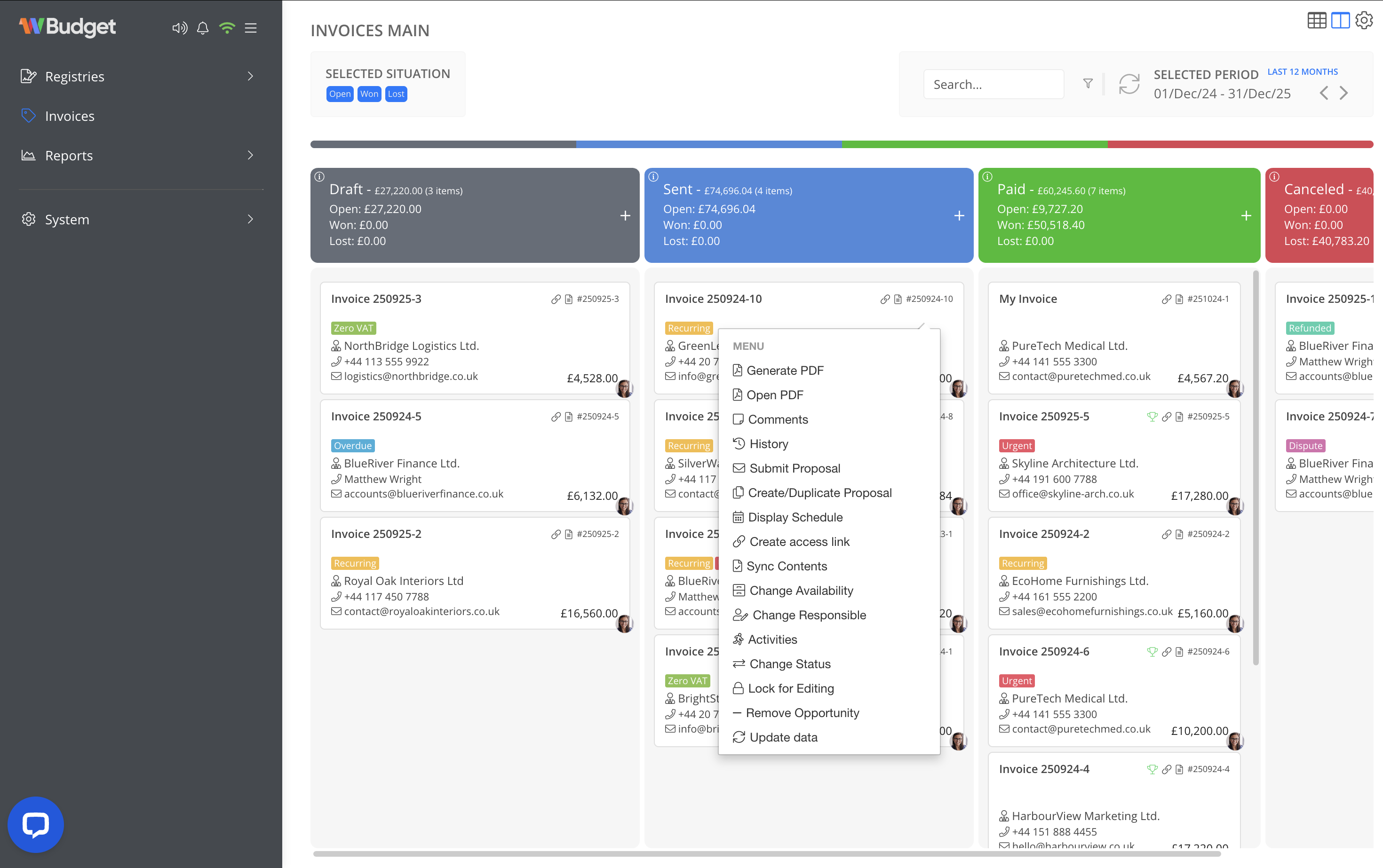
The main Invoices screen displays invoices in a Kanban view, organised by statuses
Each column shows:
- Total amount
- Number of invoices
- Breakdown by situation (open, won, lost)
You can search invoices and filter them by period directly from this view.
Creating a new invoice
To create a new invoice:
- Go to the Invoices section
- Click the
+button at the top of the desired Kanban column - A new invoice is created in that status
The invoice opens automatically for editing.
Editing invoice information
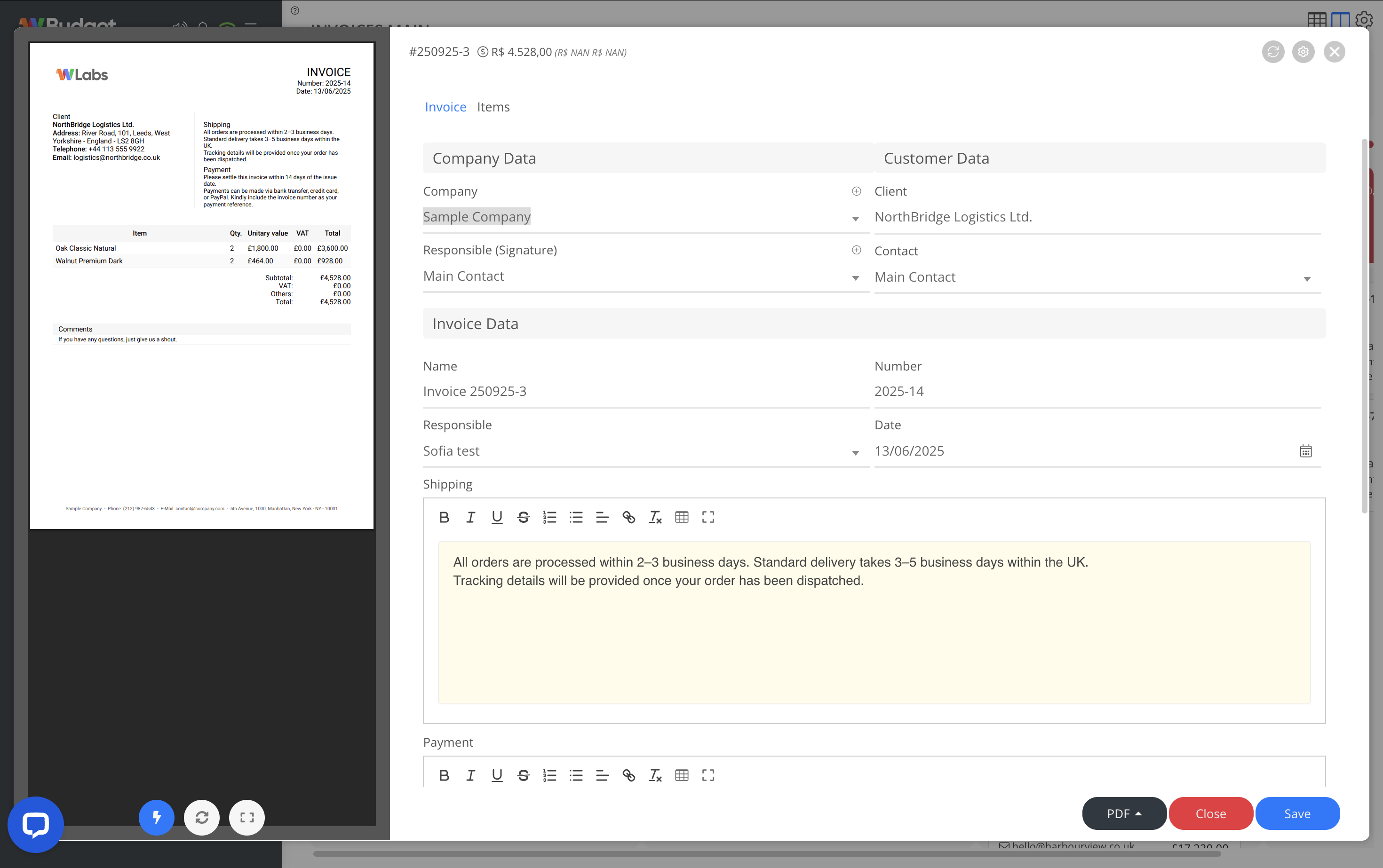
When editing an invoice, you can manage all its core information, including:
Company and customer data
- Issuing company
- Responsible person (signature)
- Customer
- Main contact
Invoice data
- Invoice name
- Invoice number
- Responsible agent
- Issue date
Text sections
- Shipping information
- Payment terms
These text fields support rich text editing.
Editing invoice items
Invoices include an Items tab where you can manage billed products or services.
From this section, you can:
- Add items from the registered items list
- Define quantities and units
- Review VAT and tax values
- Remove items (when allowed)
- See real-time total calculations
A live invoice preview is displayed alongside the items list.
Notes
- Invoices are created and managed directly from the Kanban view
- Status changes affect how invoices are displayed and tracked
- Items, customers and companies used in invoices follow data consistency rules
- Editing an invoice does not affect already issued documents unless explicitly updated