Customers
Overview
Customers represent the clients or companies that receive invoices in WBudget Invoice.
Each customer record stores identification, contact and address information used when issuing and sending invoices.
Customers can include multiple contact emails, allowing invoices to be sent to different recipients within the same organisation.
What is this for?
Customers are used to:
- Identify who the invoice is issued to
- Store contact and address details
- Speed up invoice creation
- Send invoices to multiple recipients when needed
- Maintain a clear customer database for reporting and history
Every invoice must be linked to a registered customer.
Customers table overview
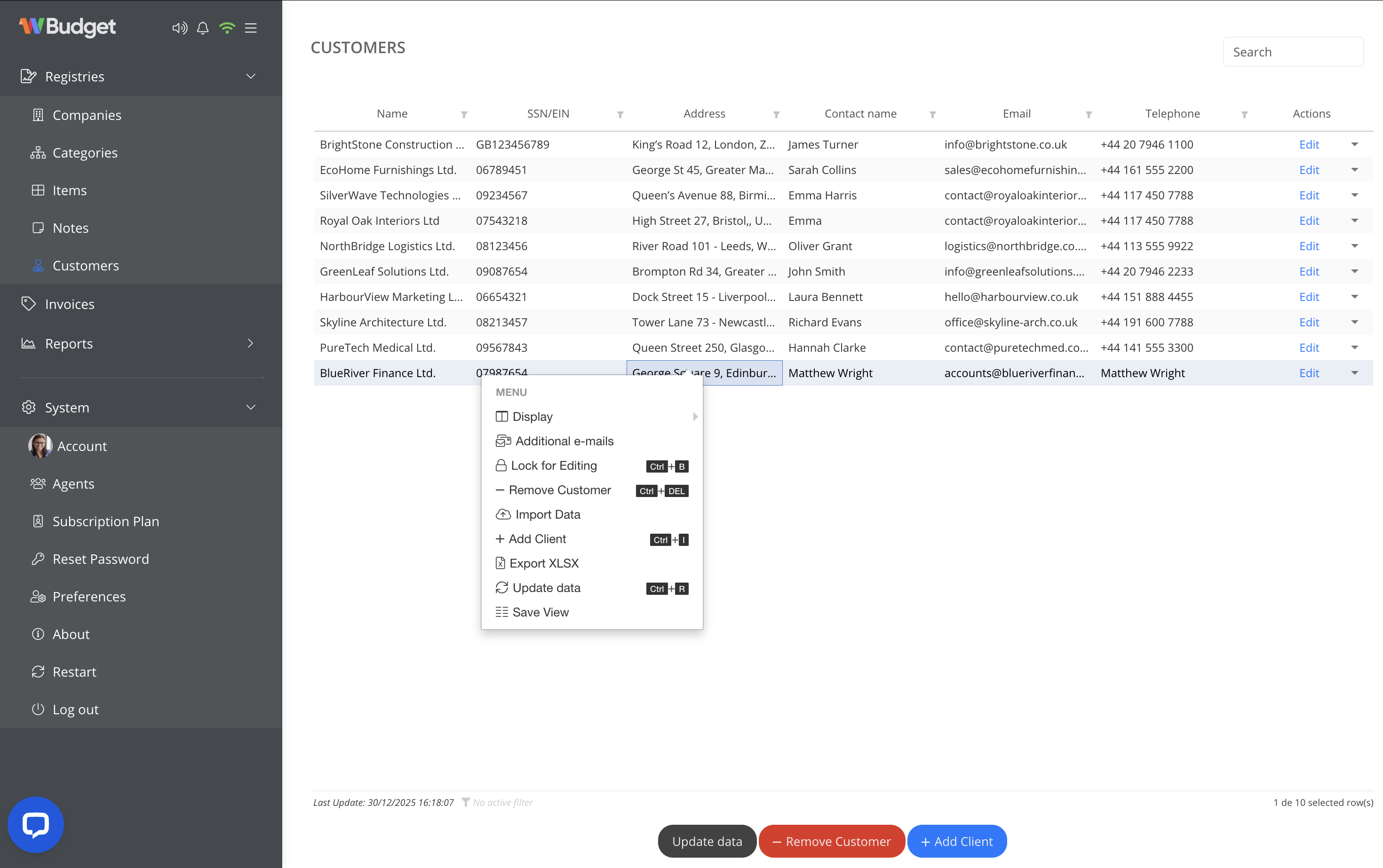
The Customers screen displays all registered customers in a table view, including:
- Customer name
- Identification number
- Address
- Main contact name
- Telephone
- Actions
You can search customers, review their details and manage records from this screen.
Adding a new customer
To add a customer:
- Click Add Client
- Enter the customer details:
- Company or customer name
- Identification number
- Address
- Main contact name
- Telephone
- Save the customer
The customer becomes immediately available for invoice creation.
Editing a customer
To edit an existing customer:
- Locate the customer in the table
- Click Edit
- Update the required information
- Save your changes
Updates are applied automatically and will be used in future invoices.
Additional email addresses
Each customer can have additional email addresses linked to their record.
This is useful when invoices need to be sent to multiple recipients within the same company, such as:
- Finance department
- Management
- Executive contacts (e.g. CEO)
- Accounting teams
To manage additional emails:
- Select a customer
- Open the actions menu
- Click Additional e-mails
- Add email addresses to the CC or CCO fields
- Save the changes
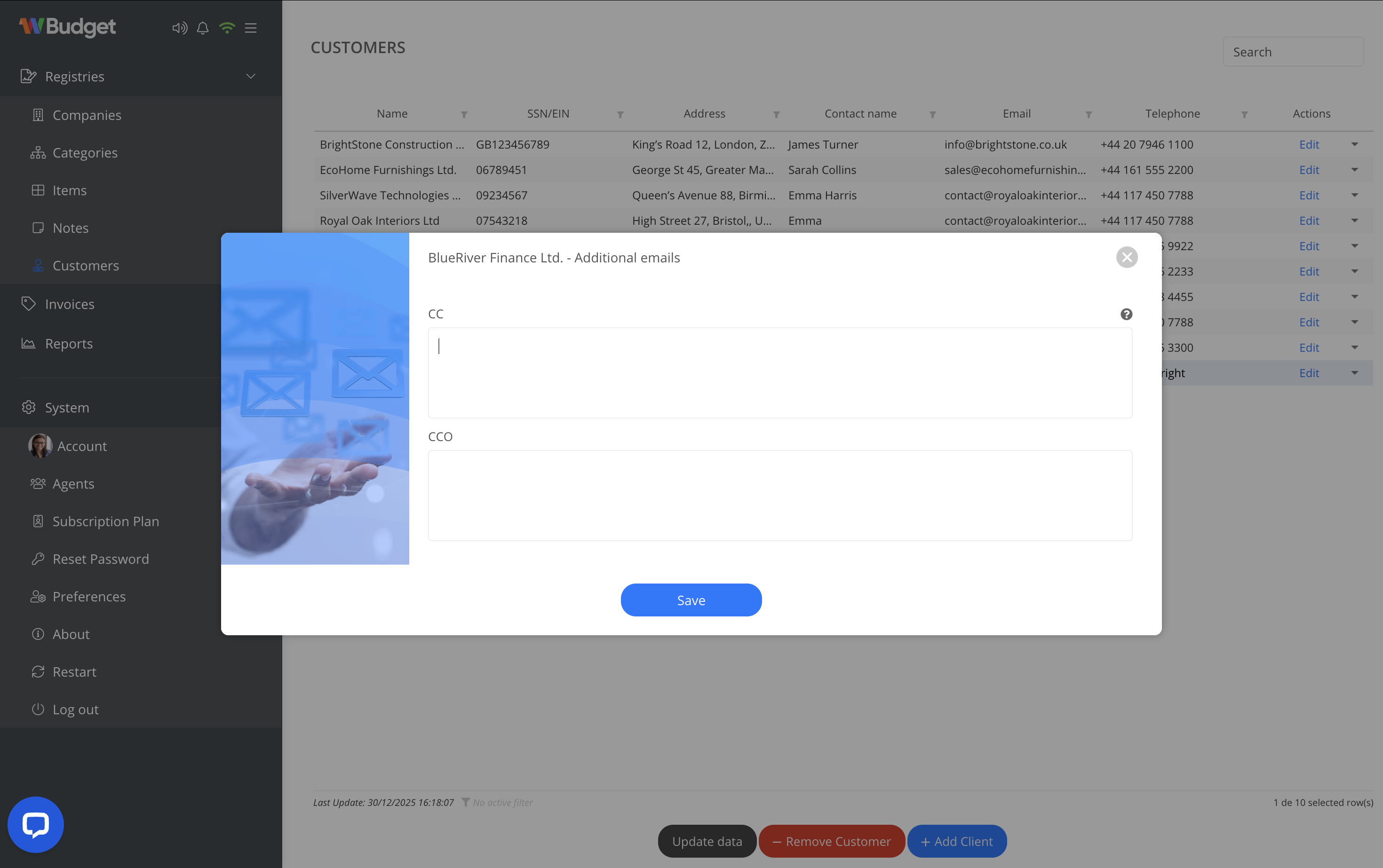
When sending an invoice, all configured email addresses will be included automatically.
Available actions
From the customer actions menu, you can:
- Adjust table view visibility and filters
- Add additional email addresses
- Lock customers for editing
- Add new customers
- Remove customers
- Import customer data
- Export customers (XLSX)
- Refresh data
- Save table views
Notes
- Customers can be reused across multiple invoices
- Additional emails allow invoices to reach multiple recipients
- Customer data should be kept up to date to avoid delivery issues
- Removing a customer may affect invoice history and is subject to data consistency rules