Companies
Overview
Companies represent the legal entities responsible for issuing invoices in WBudget.
You can register one or multiple companies and select which one will appear as the issuer on each invoice.
Each company stores identification and address details that are automatically reused across invoices and reports.
What is this for?
Companies are used to:
- Define who is issuing the invoice
- Display company data in the invoice header and footer
- Manage multiple legal entities from the same account
- Ensure consistency across invoices, exports and reports
Every invoice must be linked to a registered company.
Companies list
The Companies screen displays all registered companies in a table view, including:
- Logo
- Company name
- Responsible person
- Identification number
- Telephone
- Address
- Actions
You can search, sort, export and manage company records directly from this view.
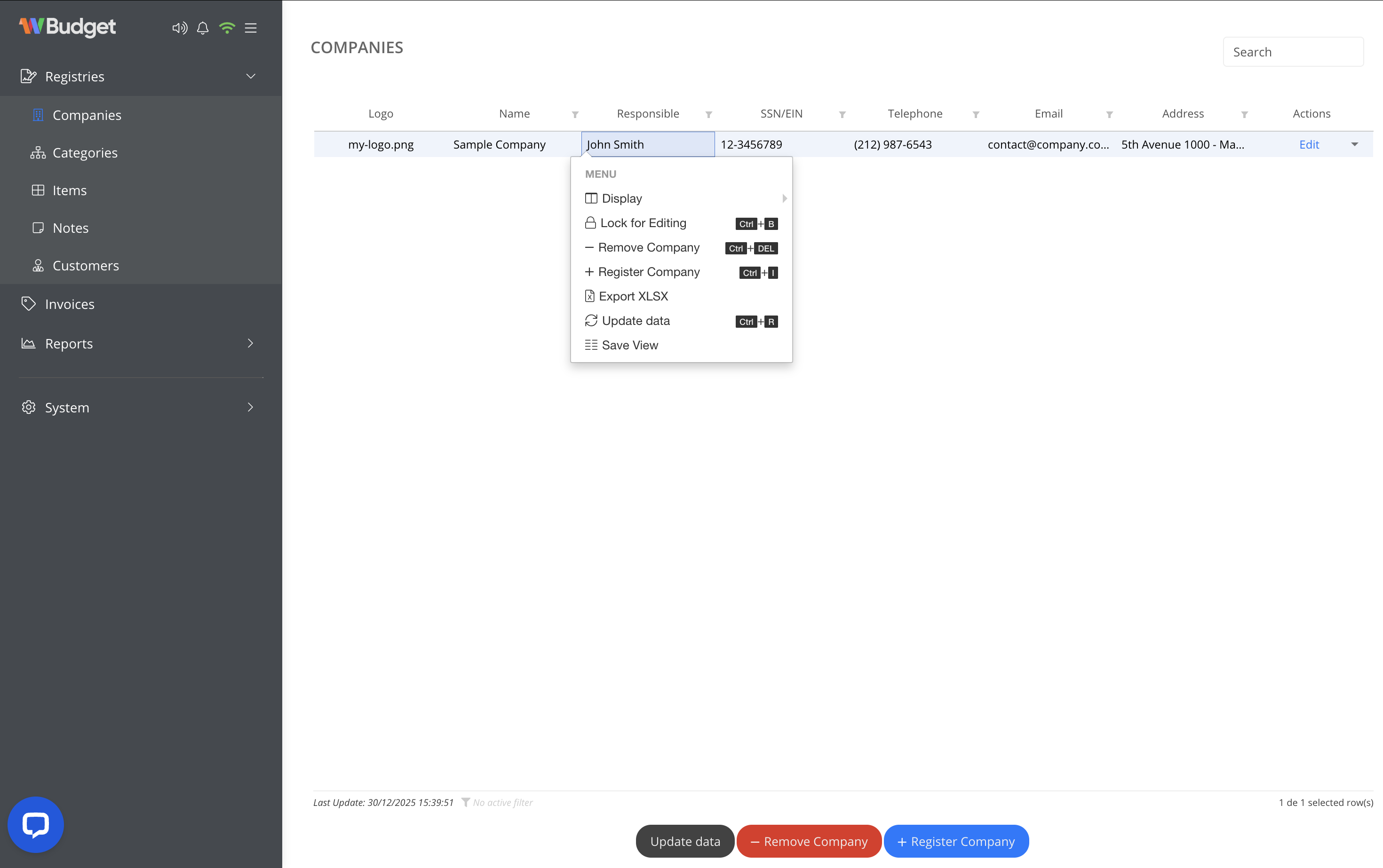
Adding a new company
To register a new company:
- Click Register Company
- Enter the main company details:
- Company name
- Responsible person
- Identification number
- Contact information
- Click Save
The company becomes immediately available when creating new invoices.
You may register multiple companies, depending on your business structure.
Editing company information
To edit an existing company:
- Find the company in the list
- Click Edit or open the actions menu
- Update the required fields
- Click Save
All changes are applied automatically and will be reflected in future invoices.
![Company edit screen] (/img/tutorial/companies_02.png)
Address information
Each company includes a dedicated Address tab where you can manage:
- ZIP / Postcode
- Street and number
- Complement
- Neighbourhood
- City
- State
This information is used in invoice documents and exported files.
Available actions
From the actions menu, you can:
- Display or hide table columns
- Lock records for editing
- Register new companies
- Remove companies
- Export company data (XLSX)
- Refresh table data
- Save custom table views
These options are especially useful when managing multiple companies.
Notes
- Removing a company may affect invoices associated with it
- Companies are shared across invoices and reports
- Keep identification and address details up to date to avoid inconsistencies in issued invoices